
❗How to add your project to our Projects Gallery on FabLab Manager 👀
Your project is posted in just a few clicks 🚀
Thank you for being part of our community and inspiring others. 🙏
You decide how much you want to share – go super detailed, or just add a photo with a short description.
Tip: Add any links that helped you along the way – guides, templates, tutorial videos… whatever made your project easier.
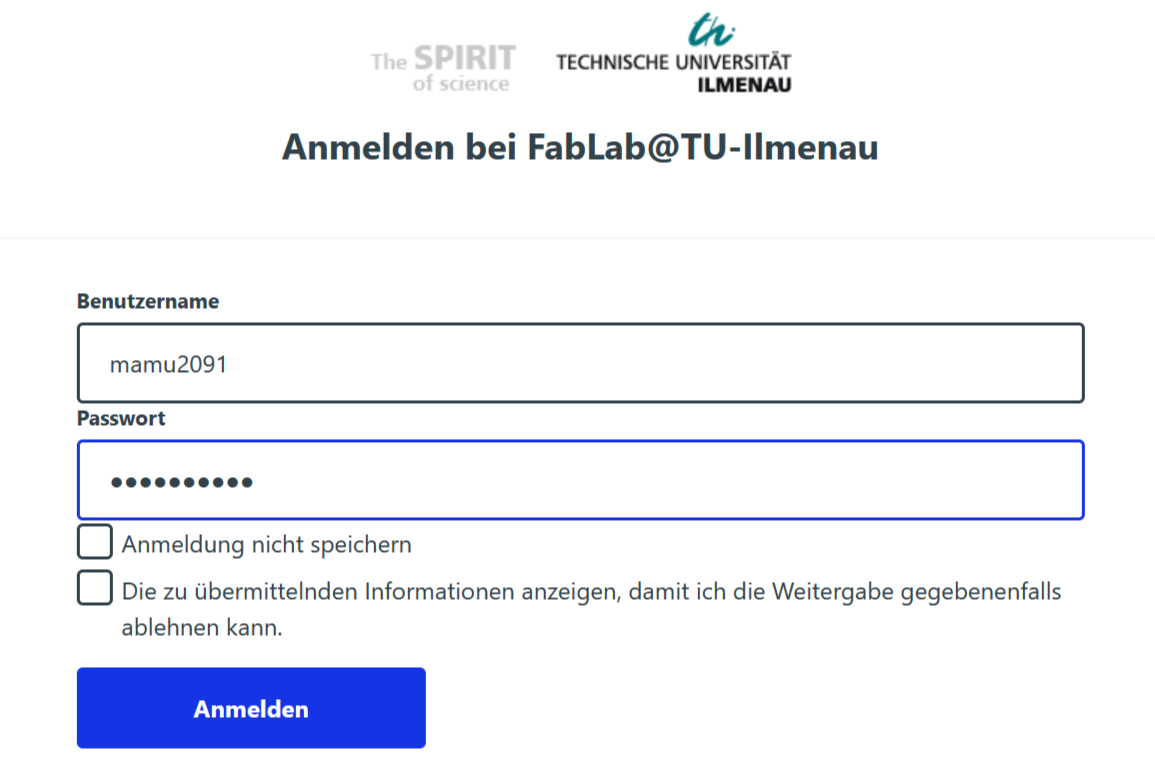
1) Log in 🔐
Log in easily with your university account.
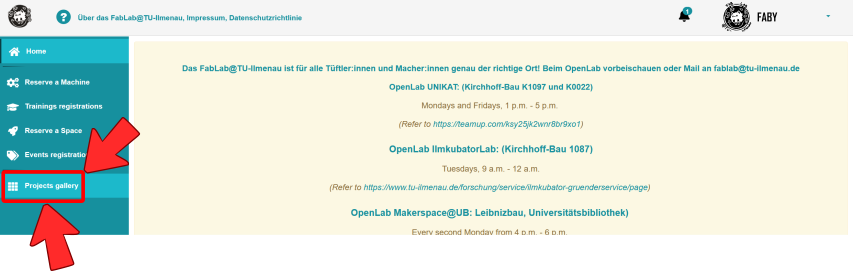
2) Navigate to the Projects Gallery
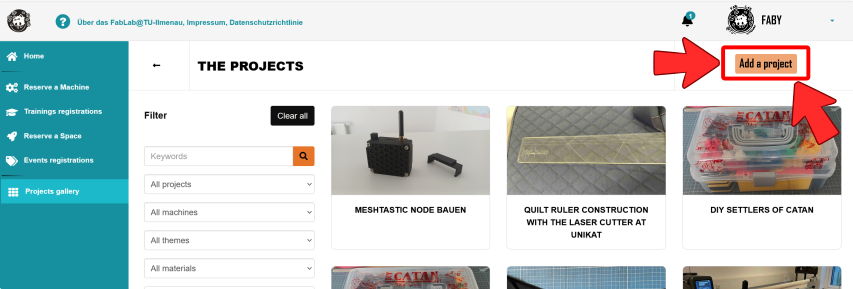
3) Create new project ➕
Just click "Add new project" and get started!
📝 Now a form page opens where you can easily add your project.
Add Detailseasily the title, image 🖼️, details 📝, &steps, 🖼️... Imagesin the middle panel.
❗Very important: Choose the Status, Collaborators and the main Employed machines you used (right-hand panel).
🚀 Then click the "Publish your project" button.
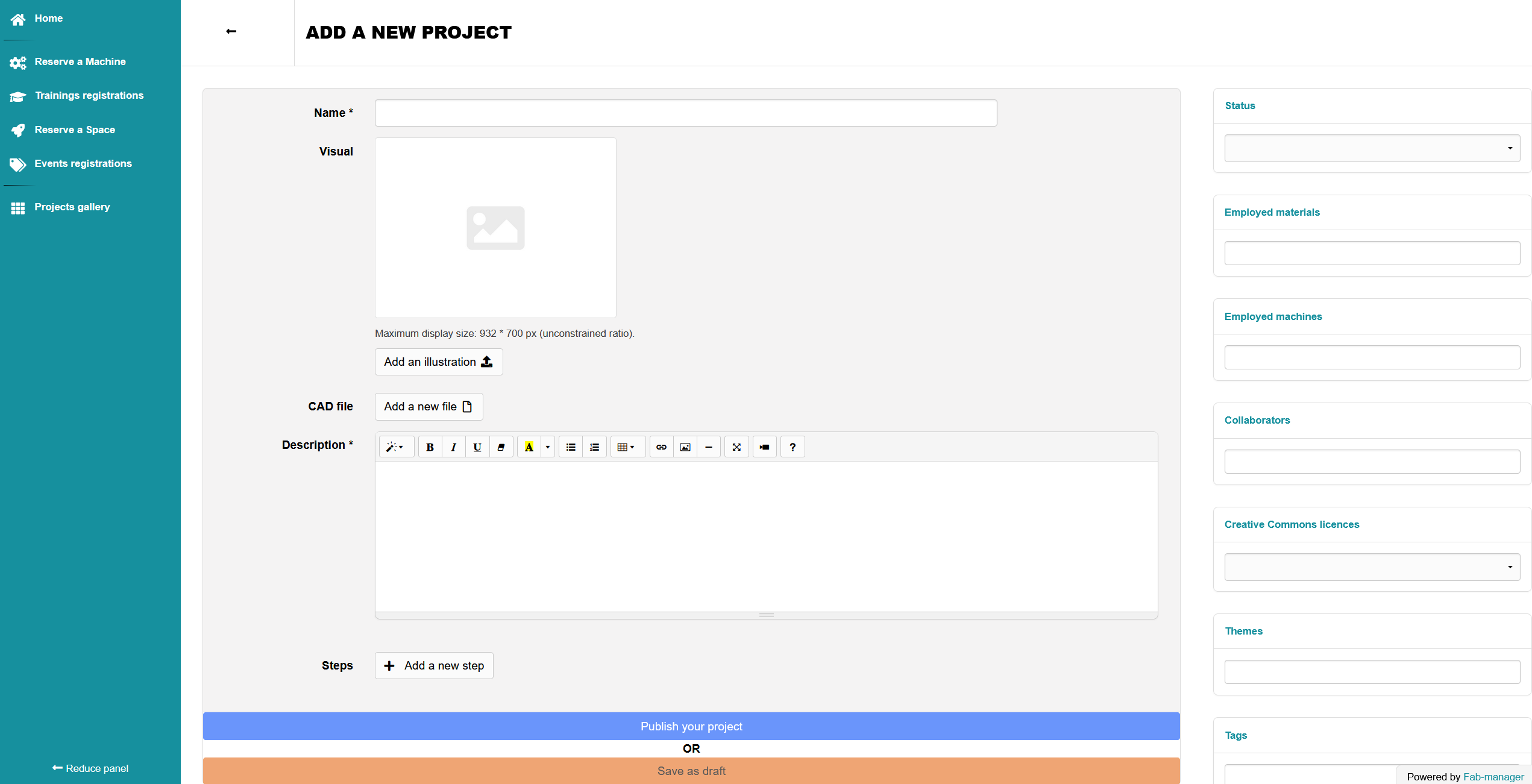
🚀 PublishAnd just like that, your project is published! 🎉 Congratulations!