Lasercutter
An 80W CO2 Laser for cutting and etching/engraving Materials like Wood/Plastics/Stone/Metall
Specification/Materials
Machine Parameters
- Kerf: 0.1mm
- Focus length 15mm
Specifications
- possibly the vevor 80W co2 lasercutter
- 80 W CO2 Laser
- 700mm x 500mm Working Area
- 1000mm/s max speed
- 0.01mm precision
- 1000 DPI resolution
- 644XS Controller -> RDC6442S
- RD Works Software
Materials
CUTTING
- wood
- plywood/composite woods
- MDF/engineered wood
- Paper/card stock
- cardboard,carton
- cork
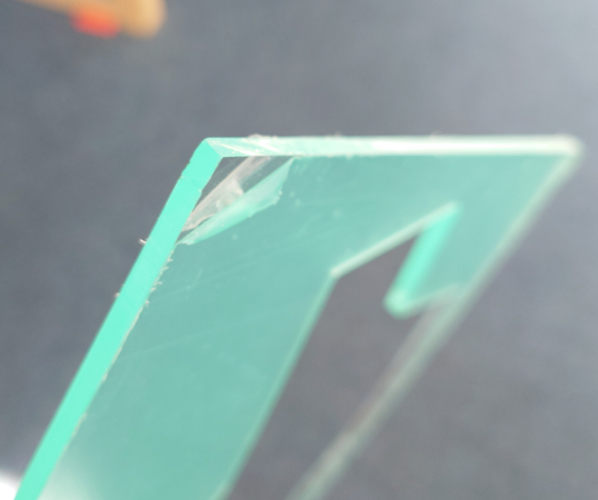
- acrylic/lucite/plexiglas/pmma
- don't remove the bottom 'green' foil
- because it blocks the reflections/dispersion of the laser beam which could get reflected to the material and then melt it

- thin (<1mm) polycarbonate sheeting
- derlin (POM)
- kapton tape (polyimide)
- mylar
- solid styrene
- depron foam
- gator foam
- cloth/felt/hemp/cotton
- leather/suede
- magnetic sheet
- NON-CHLORINE-containing rubber
- teflon(ptfe)
- carbon fiber mats/weave (without epoxy)
- coroplast ('corrugated plastic')
ETCHING
All above and additionaly (CAN NOT BE CUT but etched):
- Glass
- Ceramic tile
- anodized aluminum
- painted/coated metals
- stone,marble,granite,slate,soapstone,onyx
Safety Instructions
General
- ALWAYS SETUP AND TURN ON the gas extractor and chiller (on the left side both switches)
- always wear safety gear (glasses)
- you don't want you material to melt -> higher chance for FIRE when stringing
- check the gas/steam emission when cutting
- if to much gas/steam, adjust the settings (less power or more speed)
- know where the fire extinguisher is
- never leave laser while lasering and check from time to time/no headphones
No Go Materials
Don't use following materials:
| Material | DANGER!! |
|---|---|
| PVC (Poly Vinyl Chlorid)/vinyl/pleather/artifical leather | Emits chlorine gas when cut ruin optics and corodes metal! |
| Thick (>1mm) Polycarbonate/Lexan | Cuts very poorly, discolors, CATCHES FIRE!!! long stringy clouds on cutting -> will ruin optics and mechanics |
| ABS (Acrylonitrile butadiene styrene) | Melts instead of vaporize / Hydrogen Cyanide Gas on cutting -> UNSAFE |
| HDPE/ milk bottle plastic | Catches fire and melts |
| PolyStyrene/PolyPropylene Foam | CATCHES FIRE VERY EASILY! |
| Epoxy | can't cut -> burns/ smokes Cyanide!! |
| Fiberglass | Emits fumes (glass can only be etched and epoxy only smokes) |
| Coated Carbon Fiber | emits noxious fumes!! (carbon fiber can be cut, but not when coated) |
| Any Food | Not food-safe -> many toxic gases where in the laser for a longer time |
| Material With Sticky Glue Backing | Coats/ cracks lens when CUT; also hard to remove from the lens! |
How to use
0. Wear Safety Gear and Setup Suction
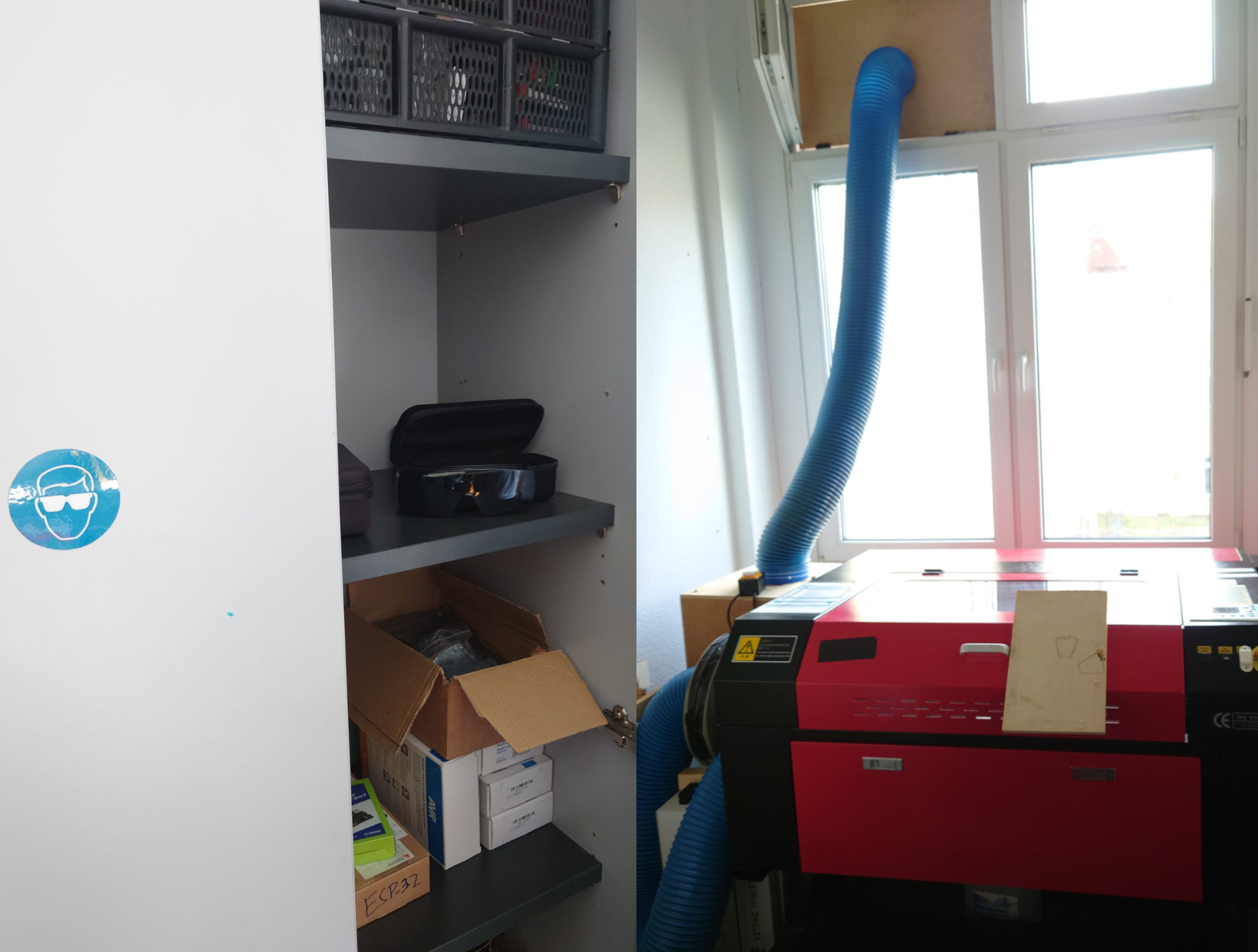
Safety glasses are found in the cabinet next to the door, DON'T TOUCH THE GLASSES ON THE PROTECTIVE SIDE.
Before starting, install the tube to the upper window like here:
1. Turn on Suction, Cooling and Laser
First turn on the suction:
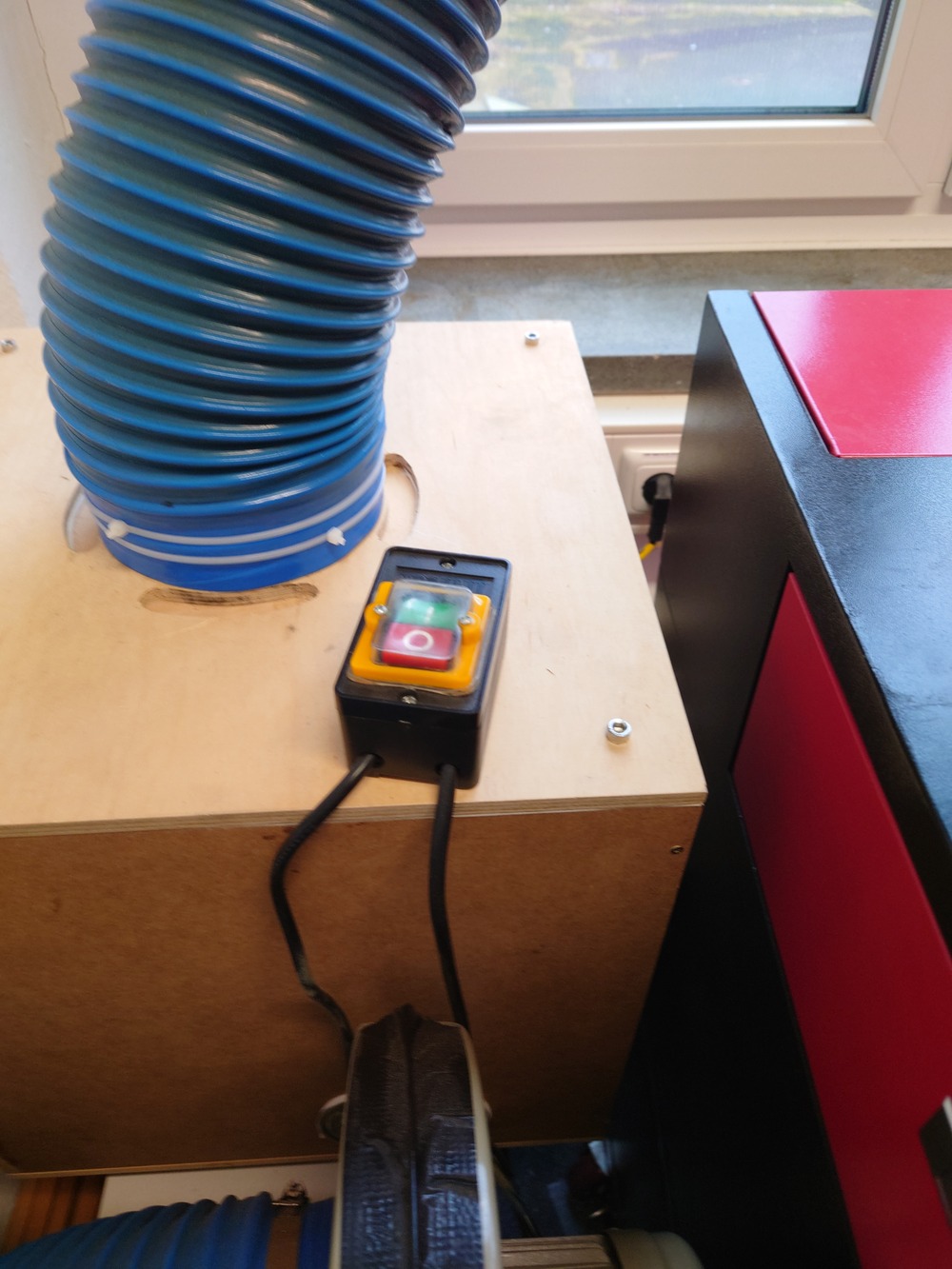
Then the cooling for the laser (behind the blue tube):
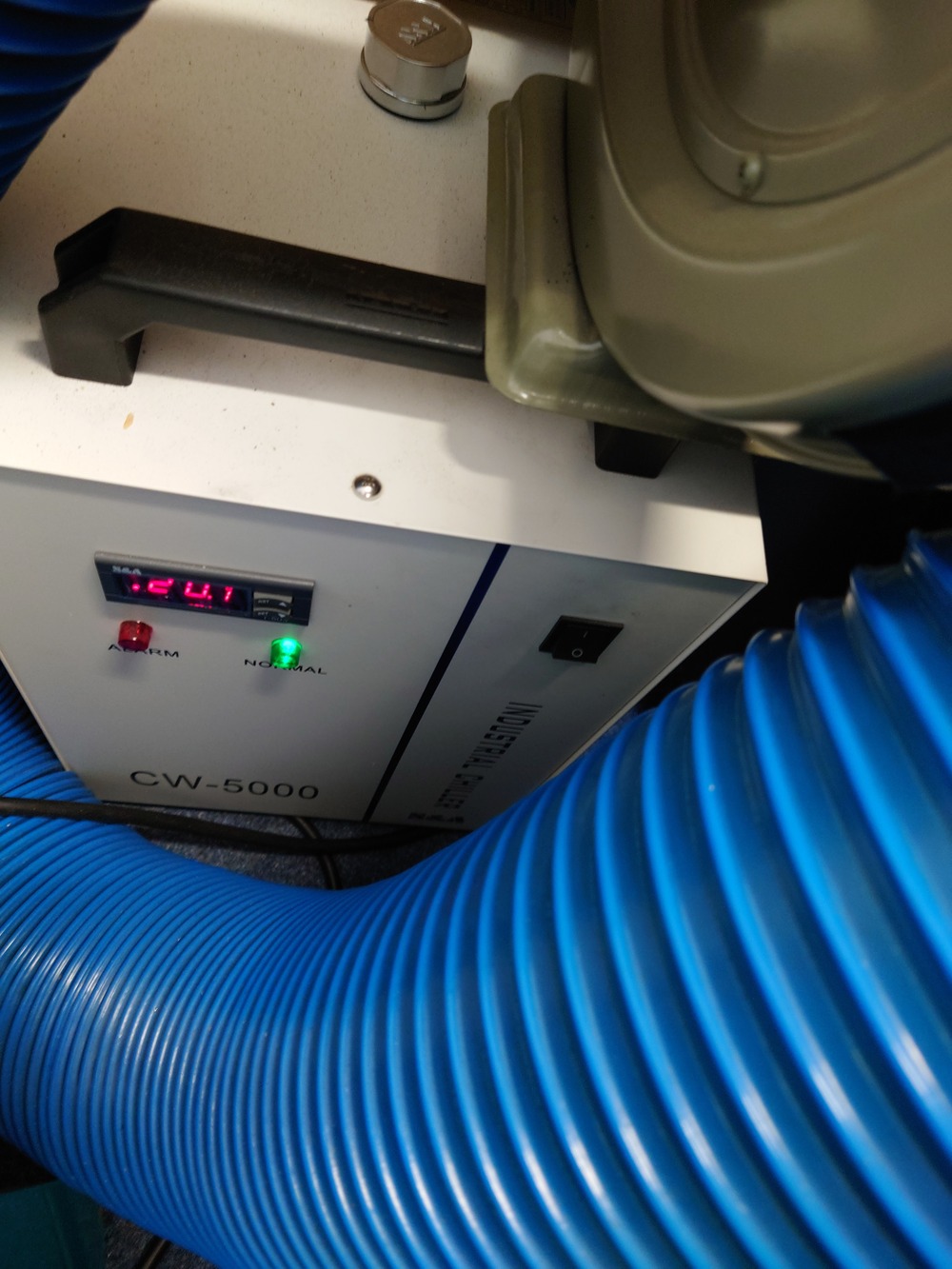
And afterwards the laser itself. It is on the bottom right side of the laser with the round switch (labeled 'main switch'):
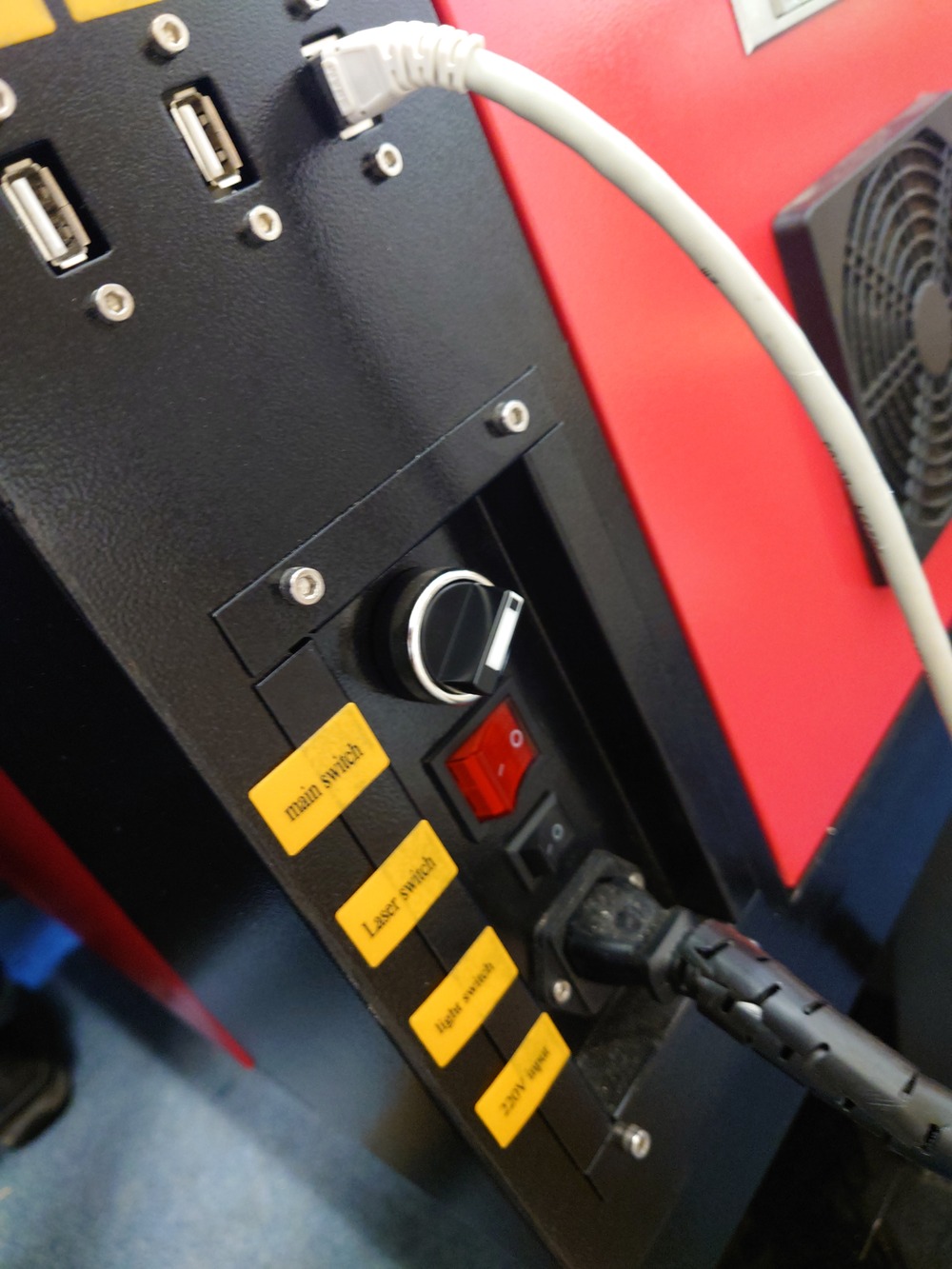
Also on the side panel there is the switch for the laser tube and the light switch. Only turn on the laser itself ('Laser switch') when needed.
2. Fasten Material
Next place the material and if its not heavy/flat enough, use the red/blue magnets and fixture onto the table.
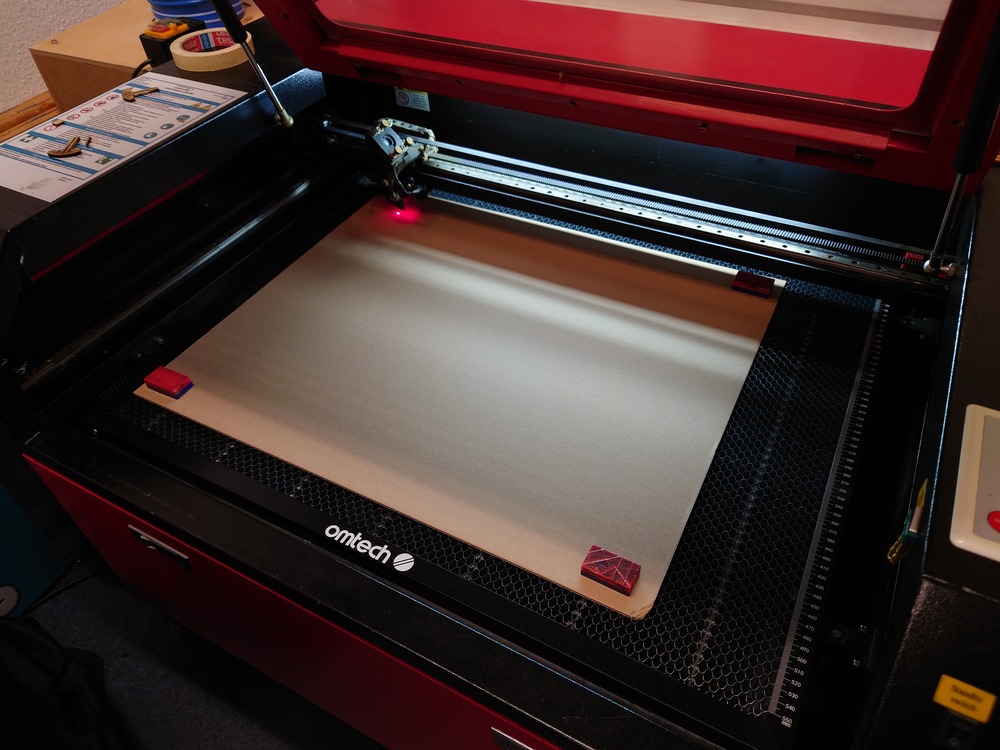
3. Adjust Focus
For a precise cut you have to set the focus onto the surface of the material. Use the top right side buttons for lift/lower the workplate.
Then use the focus-piece and place it between material and laser. Caution! Two focus-pices are available: 15mm and 20mm Use the 20mm pice
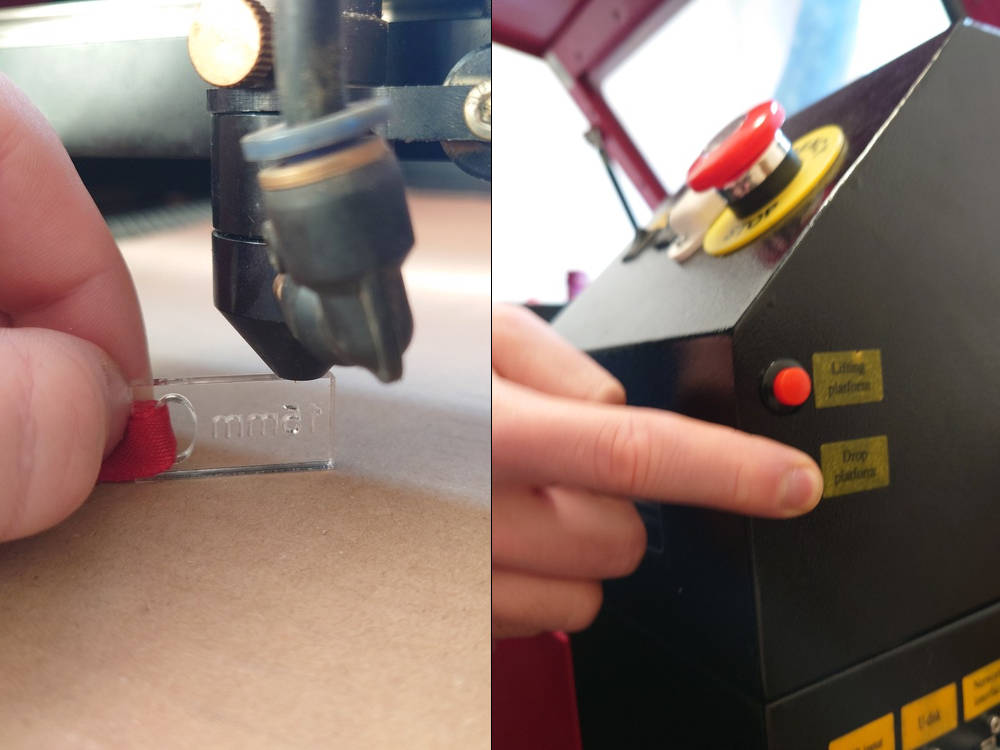
To find the right settings you can laser this test array to dial in the parameters.
4. Set Origin
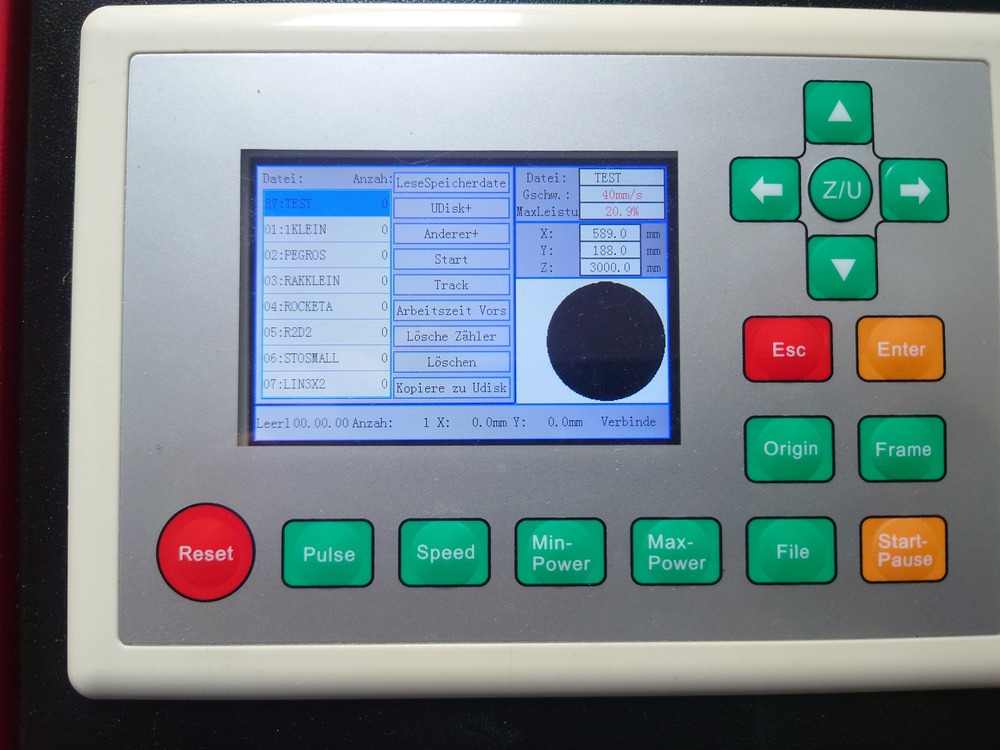
Then use the control panel on top of the laser to set the origin of your work by using the arrow keys to move and the 'Origin' button to set it.
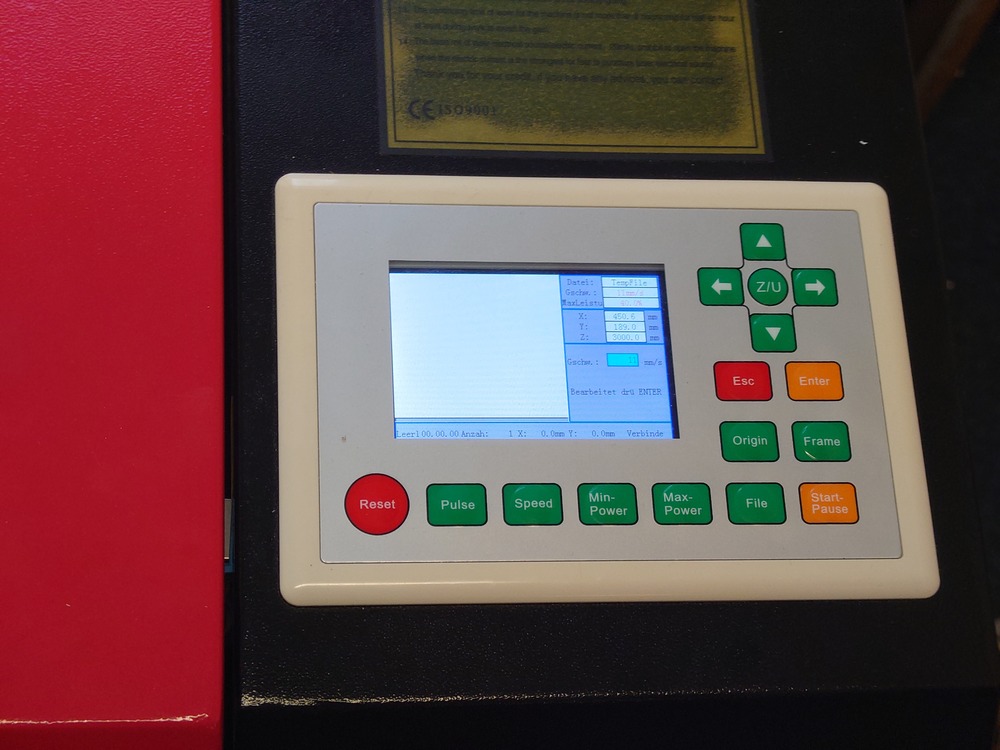
Control Panel Buttons
Reset : restarts machine controller, also homing on restart, abrupt stop
Pulse : aktivates the laser for a short period with the currently set power
Speed/Min-Power/Max Power : sets the current Speed/Max-/Min-Power of the machine; after choosing the value with the arrow keys above, press 'ENTER'
File : used for selecting uploaded files, shows a preview on the right side of the panel, for selecting, use again the arrow keys and 'ENTER', for exiting 'ESC'
Origin : sets the current position as the origin
Frame : If a file is selectet, drives the outline of the file
Start/Pause : start/pause currently selected file/operation
Esc : Used for stopping the currently paused operation gracefully
When nothing is selected the Arrow Keys are used for X/Y-Movement with the currently set speed.
5. Prepair File to Cut/Etch in RDWorks
Open RDWorks 
Here you can import ONLY DXF files on the top left Menu File->Import.
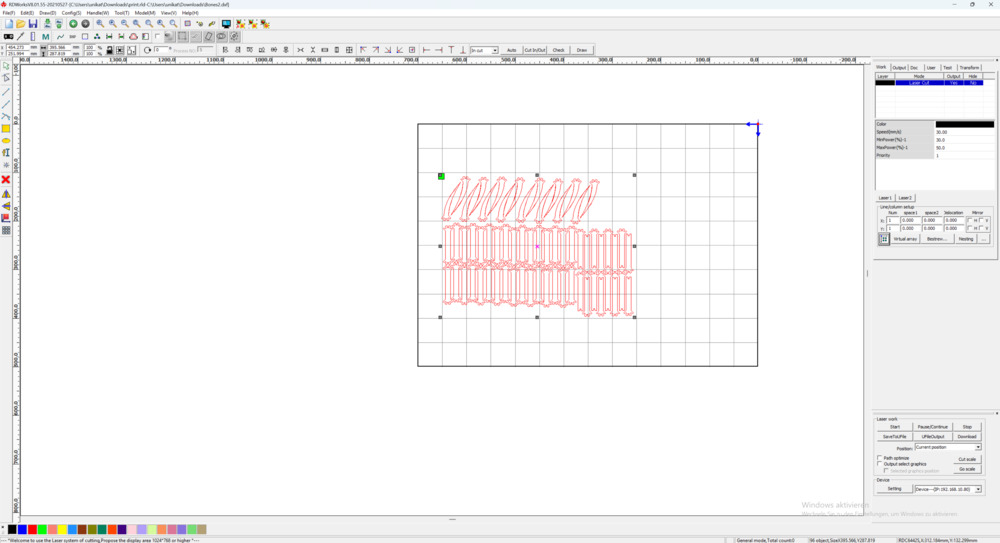
On the bottom left side, you can assign new layers with the colors for your components when needed. (Yes, only as many layers as there are those colors -.-)

The importent settings are on the right side:
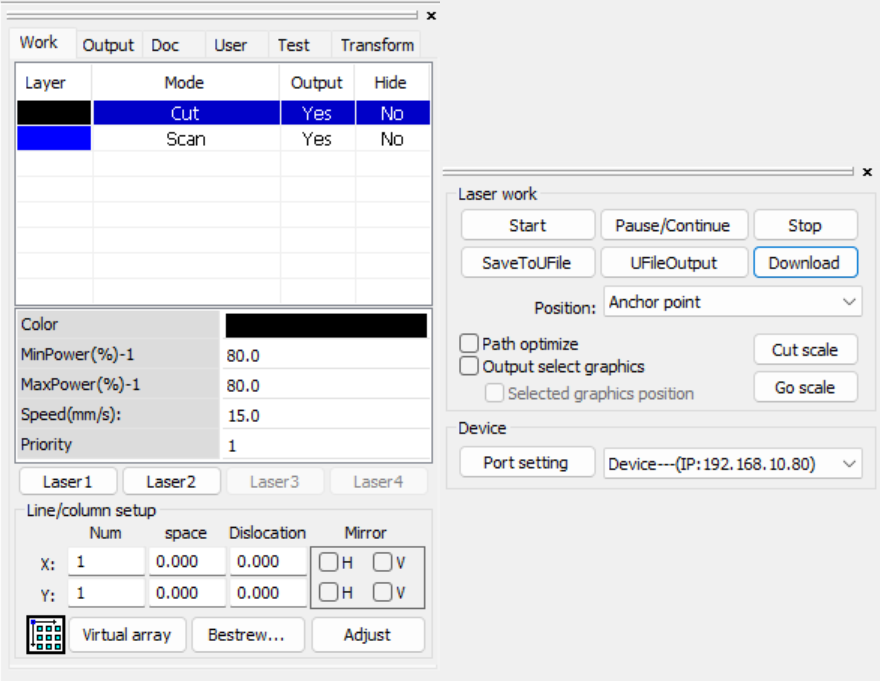
Then on the top right panel (left on the picture) are the settings for layers, the operation, speed and power for each of them. And on the bottom right (right in the picture) you can select the choosen position, port/address of the laser and can control it here (more later)
The selected one can be edited quickly with the fields below or with Double Click edit the advanced settings for the selected layer. Ensure in the column 'Output' is a yes for all layers.Here you can import ONLY DXF files on the top left Menu File->Import.
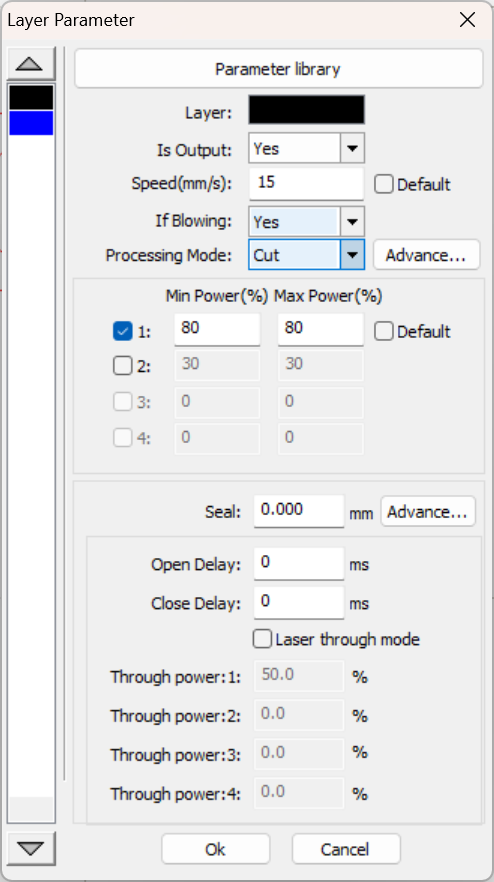 |
In the top you have a small parameter library with predefined parameters that should usually work. Then Speed is very important and depends heavily on the material/operation. Then the operation mode, where - Cut : Drives along the path of the vector graphic - Scan : filles the area the vector graphic spans with many parallel lines - TODO : TODO - TODO : TODO Then Power is also very important and also depends on material and operation. TODO |
6. Start Cutting/Etching
For starting you need the bottom right settings:
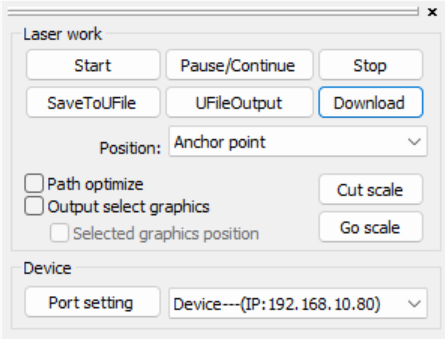
0. Origins in RDWorks
One important field is the Position, where you set the origin the machine should use.
But it's only applied when starting from the software
| Position | Meaning |
|---|---|
| Absolut Coordinate | Uses absolute coordinates from the software, so the machine zero as reference point |
| Anchor Point | Uses the position of the origin setting on the machine |
| Current Position | Uses current position of the laser, not origin |
| Machine Origin | ???? |
When starting from the machine, the origin of the machine is always used.
1. Start directly in RDWorks
Then to start lasering, Start directly uploads and starts the file.
2. Upload to Laser and start
You can also use 'Download' to upload the file to the machine.
Then on the machine you can re-adjust the position and check the outline it with the 'Frame' button.
To load the file, press File then select it and use it with Enter
Tips and Tricks
- when you want to align something precisely, cut out the outline of the piece in Cardborad and place the piece you want to align into it
Maintenance
Troubleshooting
Software: RD Works Errors
Wierd Language
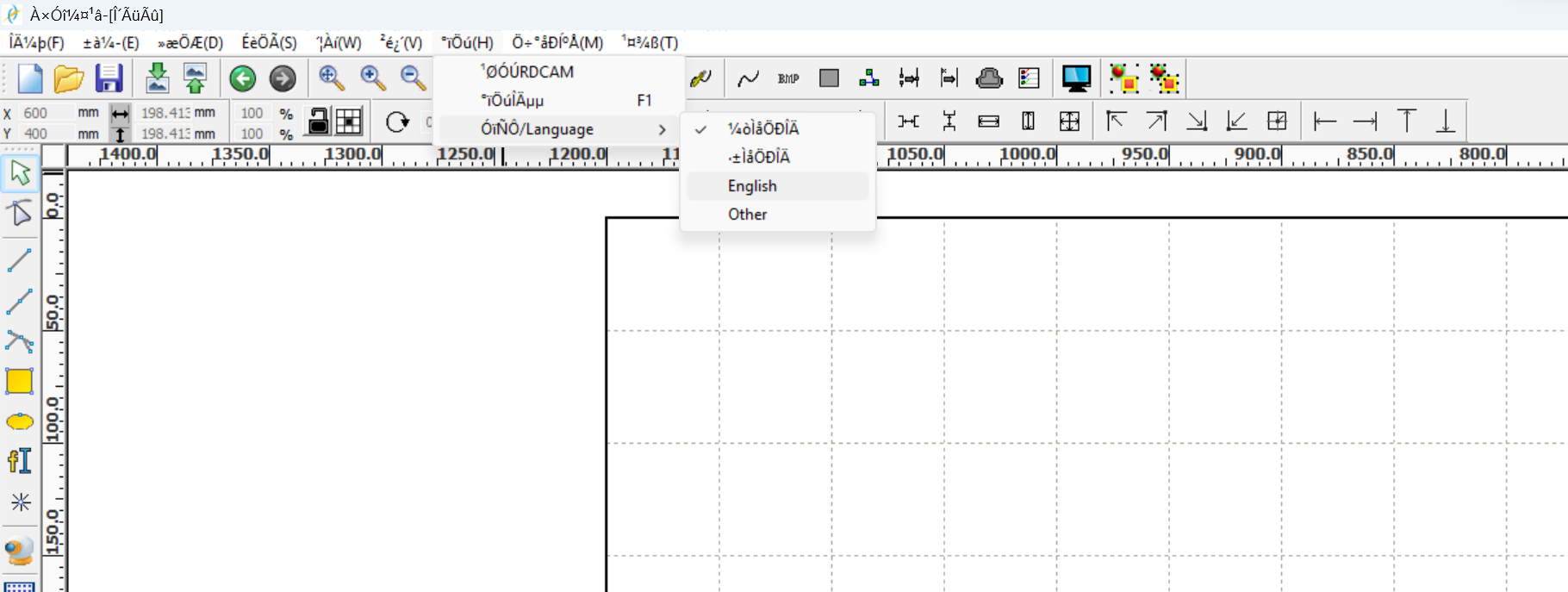
If RD Works menues are displayed in a wierd way.
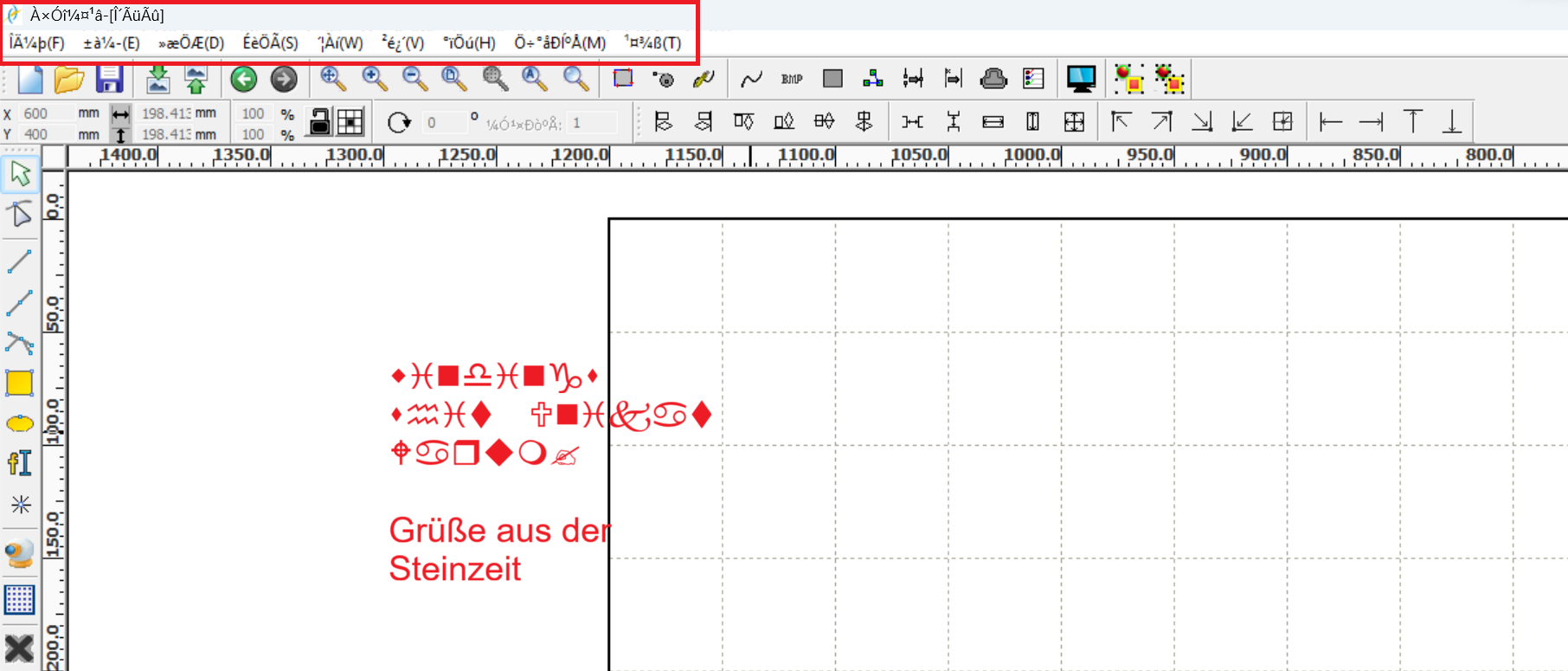
Change the language settings:
Hardware: Machine Errors
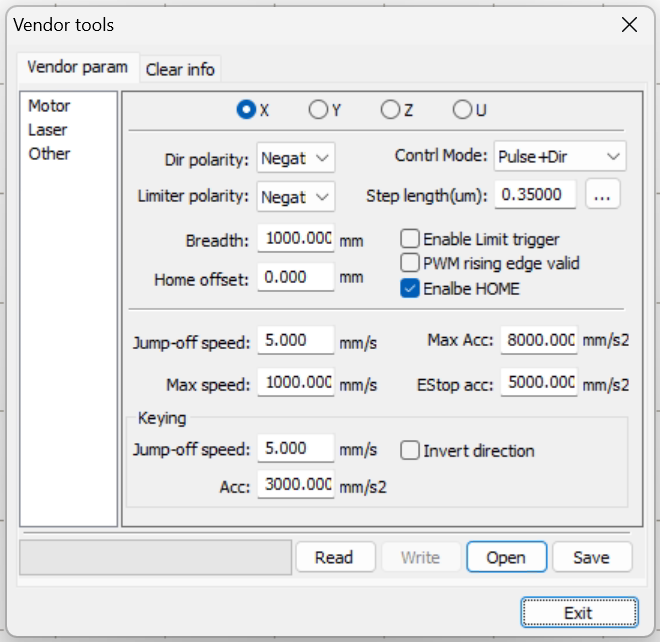
Engraving Accelerartaion Issue
Machine error (German): Nicht genug erw. Sper Bitte "Esc"
Machine error (English):
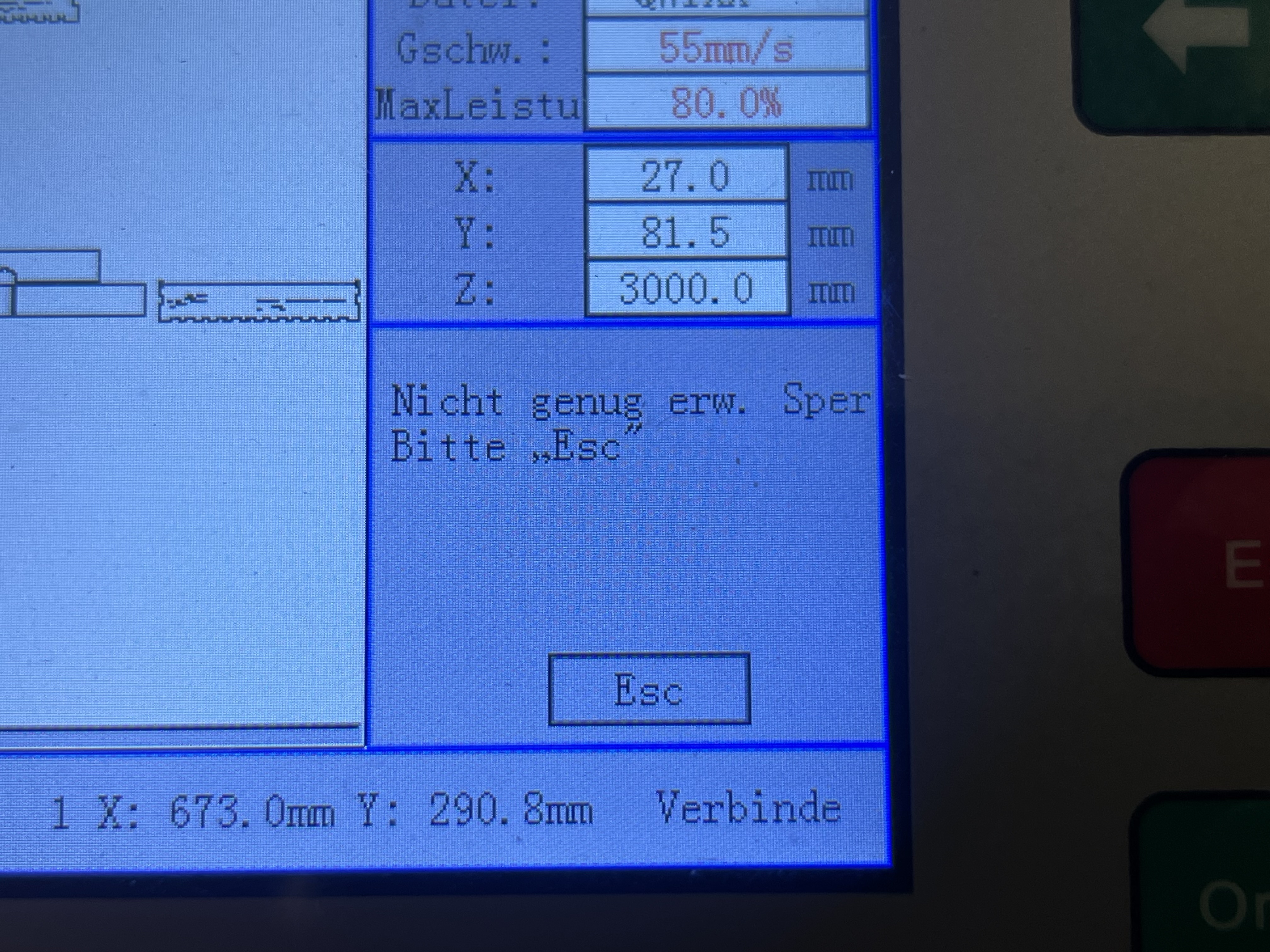
When engraving elements are placed very close to the edge of the work area, the laser head cannot accelerate/decelerate in the X direction enough. The head needs some space to speed up or slow down.
Solution: Place the engraving pattern farther away from the edge of the work area. Alternatively, move the origin closer to the center of the machine bed.
A more precise explanation can be found here:
Forum - Fablab Luebeck (German)
Frame solp/engrave slop - Youtube (English)
Enter Vendor Settings
Use RD Works to enter and change the controller's vendor settings. Go to "File" > "Vendor Settings," and enter the password for the motherboard.